
Download
- Adobe Lightroom Classic 2025 v14.2.dmg | Backup
- Adobe Lightroom Classic 2025 v14.1.1.dmg | Backup
- Adobe Lightroom Classic 2025 v14.0.dmg | OneDrive | Backup
How to Install
Step 1: Install Creative Cloud
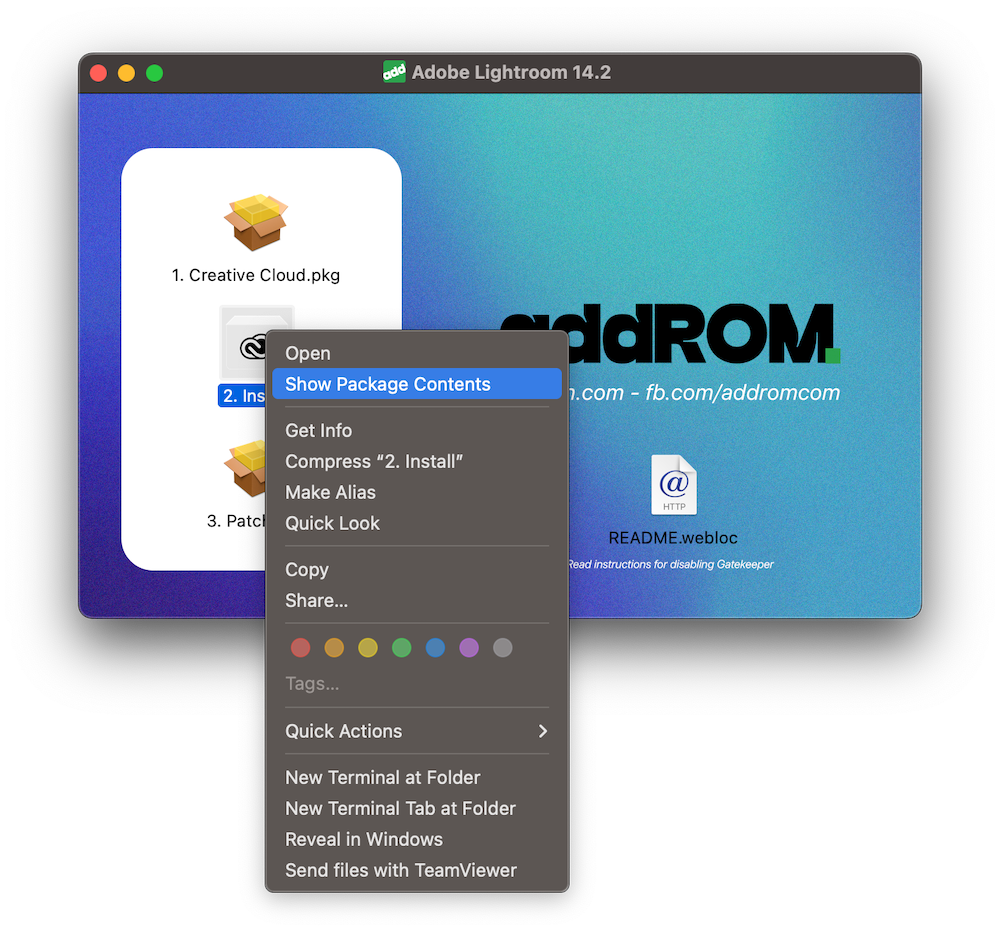
Step 2: Right click and select Open to run the Install file (of course, you must turn off gatekeeper first). For example, if you can’t open it, right click on the Install file> Select Show Package Contents > Contents > MacOS > Run the Install file.
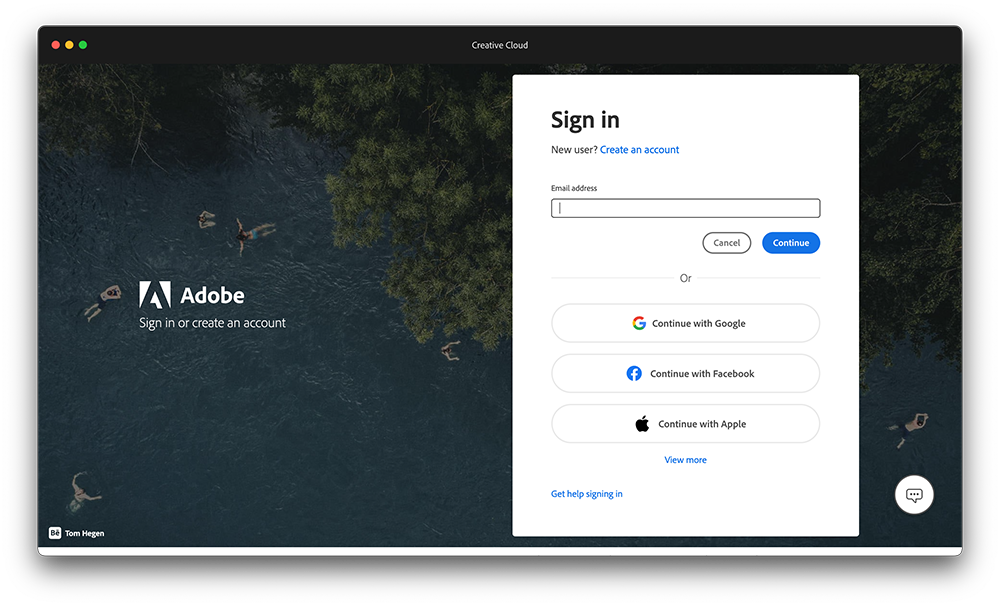
Step 3: After installation, open the Lightroom file once and log in to any Creative cloud account (this step is extremely important, do not do it wrong, must log in before patching).
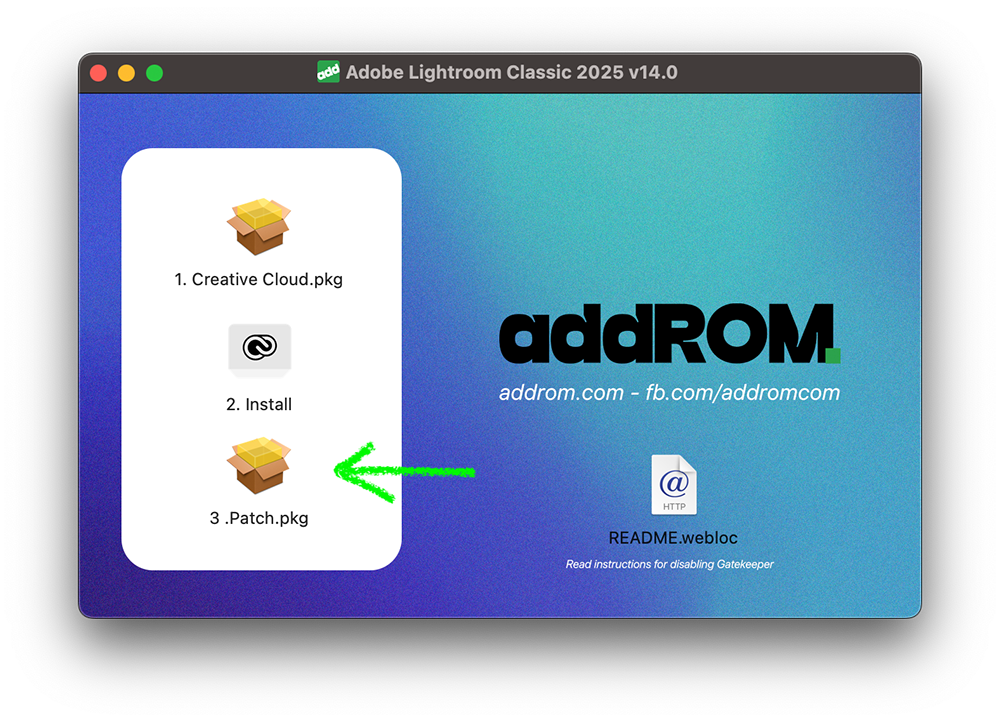
Step 4: Right click and select Open to run the Patch File installation (The installation may take a while, be patient and drink a cup of coffee, don’t post to the Group to ask right away)
This version is good because you can use any account, it does not need to be a Trial account like the previous version. I just tried to register a new account.
Note 1 (Important): LR requires an Internet connection when opening, so absolutely do not use any software to block the connection. Otherwise, it will fail.
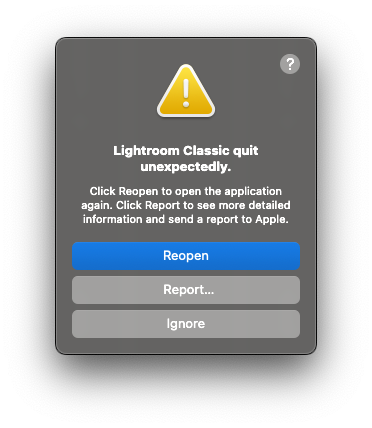
Note 2: If the first time you open it, it will show an error as shown in the picture. Open it again and it will work.
Note 3: Due to the unofficial installation (not from Creative Cloud), LR may not appear in launchpad. Go to Application > Adobe Lightroom Classic > drag to Dock for convenience next time.